Logging In
Your course instructor or WebMO administrator will provide you with
- URL for your WebMO site (typically <univerity>.cloud.webmo.net)
- WebMO username
- WebMO password
Use this information to login to WebMO.
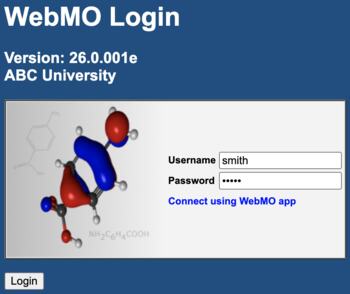
WebMO Cloud Login Page
Job Manager
After logging in, you will be on the WebMO Job Manager page. The left panel of this page displays your username and group, your job time limit, and the number of currently queued jobs in your group. The top menu is for creating and managing jobs. The rest of the page lists the jobs you have submitted and/or run.
See Job Manager for details.
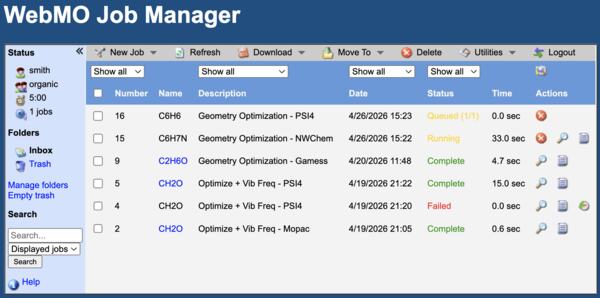
WebMO Job Manager Page
Running Jobs
To run a job, click New Job: Create New Job in the top menu ( ).
).
There are 4 steps to running a computational chemistry job:
- Build a molecule: Use the built-in 3-D editor to draw your molecule. Choose atom with the Periodic Table icon (
 ). Click to insert atoms. Drag between atoms to insert bonds. Clean up the structure with the clean-up icon (
 ). Click the Continue arrow (
 ) in the bottom right to move to the next step.
 - Choose an engine: WebMO Cloud offers several computational chemistry engines to run your calculation. MOPAC is often a good choice. Use the engine recommended by your instructor. Click the Continue arrow ().
- Configure Job Options: WebMO provides reasonable defaults for Job Name, Charge, and Multiplicity. Choose your desired Calculation, for example
- Molecular Energy
- Geometry Optimization
- Vibrational Frequencies
- Molecular Orbitals
- ...
). - Monitor Job Progress: You will be returned to the Job Manager, which displays the status of your job: Configuring, Queued, Running, or Complete. Jobs sometimes Fail, which could be caused with a problem in setting up the job or exceeding the job time limit. Consult your instructor if this happens.
See Building Molecules, WebMO Editor, Choose Engine, and Job Options for details.
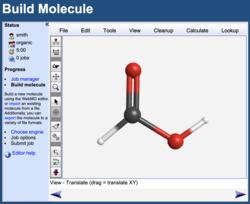 3-D Editor |
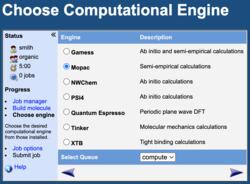 Choose Engine |
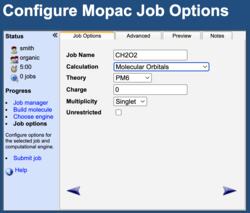 Job Options |
Visualizing Results
When a job is completed click the Job name or the View Job icon ( ). A 3-D molecular image is displayed on he top that can be rotated (
 ), translated (
 ), and zoomed (
 )
)
Calculated numeric quantities are displayed in tables below the image. Many of the quantities have a View icon (), which can display a visual representation of the quantity on the molecular image.
See Visualizing Results for details.
'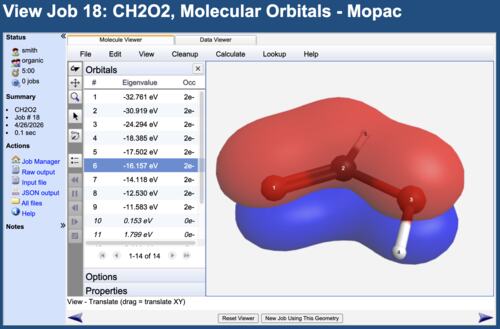
WebMO Visualize Results
Getting Help
The primary source of assistance for using WebMO Cloud is your course instructor or WebMO administrator.
There are also Video Tutorials for many tasks in WebMO.