Overview
Multi-factor authentication (MFA) adds a second step to logging in. In addition to a password, a six-digit verification code from an authenticator app on a smartphone, such as Google Authenticator or Authy, must be supplied. The code changes every 30 seconds, so someone who learns a password still cannot login without the phone.
MFA is a self-service security option. Each user decides whether to enable it for their own account, and an administrator cannot enable it on someone else's behalf. A group administrator can, however, require that members of a group use MFA before they can submit jobs.
Enabling MFA for Your Account
From Job Manager, choose Utilities: Edit Profile and click the Security tab.
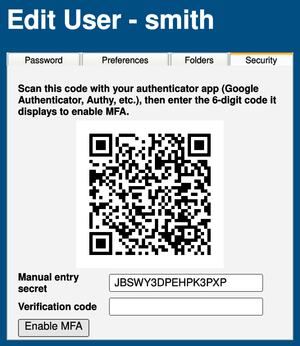
Security Tab
Scan the displayed code with the authenticator app, or type the Manual entry secret into the app if the code cannot be scanned. The app will begin displaying a six-digit code. Enter that code as the Verification code and click the Enable MFA button.
A list of recovery codes is then displayed. Save these codes, as they are displayed only once. Each code may be used once in place of the authenticator app, for example if the phone is lost or unavailable.
The next time you login, you will be asked for a verification code after entering your username and password. Supply the code displayed by the authenticator app, or click Use a recovery code instead to supply one of your recovery codes.
The Security tab also allows MFA to be turned off with the Disable MFA button, which requires your current password, and a new set of recovery codes to be issued with the Regenerate Recovery Codes button.
Requiring MFA for a Group (Enterprise)
Either the group administrator or the admin user can require that members of a group use MFA. Edit the group with the Group Manager and check Require multi-factor authentication on the Permissions tab. The admin user can require MFA for the default webmo group by using its Group Manager to edit the webmo group.
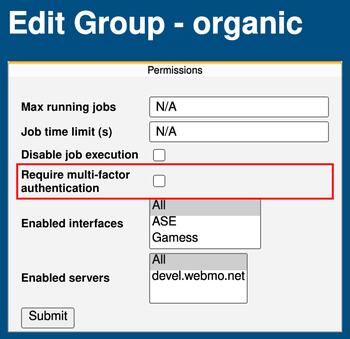
Requiring MFA for a Group
Group members are not enrolled automatically, since only a user can enable MFA for their own account. Instead, members who have not yet enabled MFA can still login and view their existing jobs, but cannot submit new jobs until they do so. A message explaining this, with a link to the Security tab, is displayed when they attempt to submit a job.
If a User Loses Their Device
A user who has lost access to their authenticator app can login with one of their recovery codes and then enable MFA again with the new phone.
If no recovery codes remain, the admin user or the group administrator can turn off MFA for that user with the User Manager. Click the Edit icon ( ) for the user and click the Disable MFA button on the Password tab. The user can then enable MFA again.